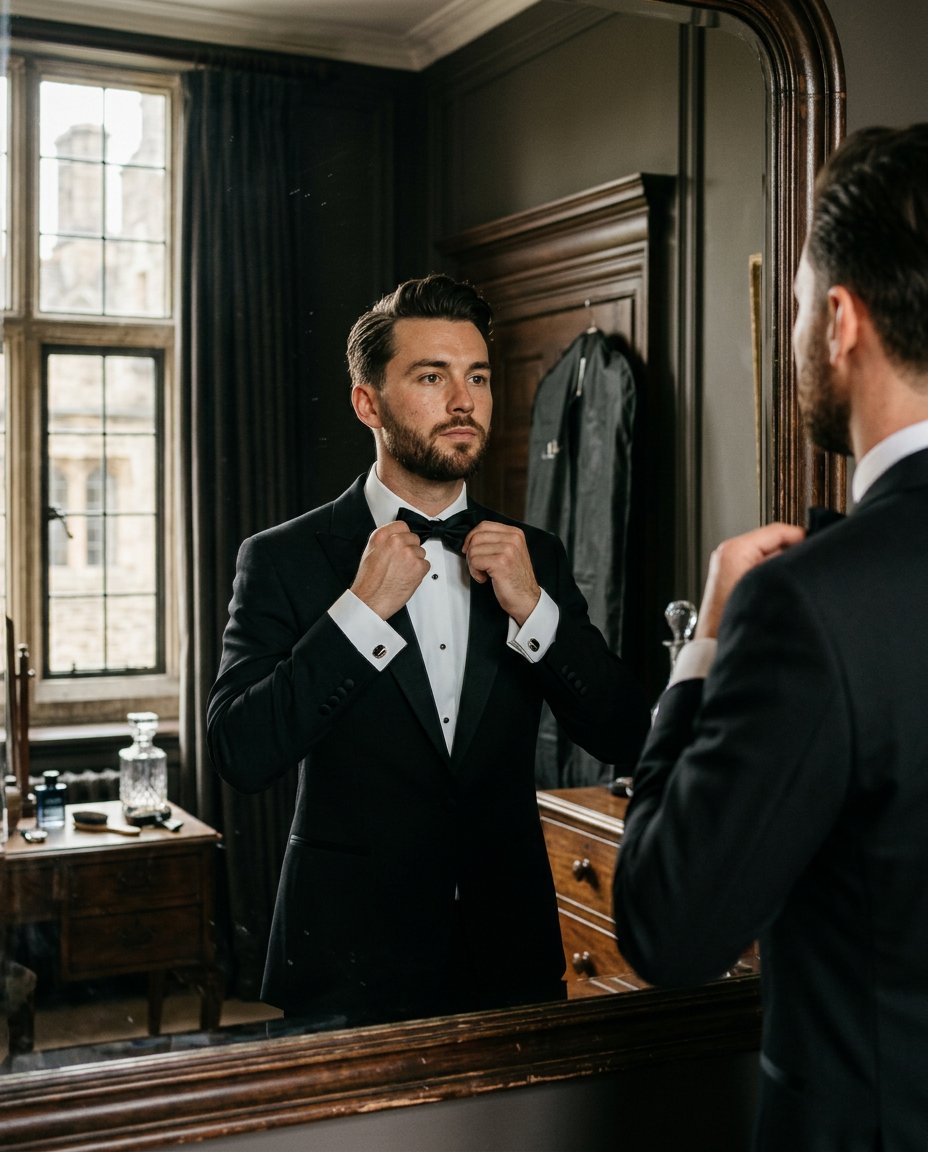
This photo editing prompt turns a photo into a groom getting-ready portrait. It adds a black tuxedo, bow tie and cufflinks with soft mirror light while keeping the face and identity unchanged. Perfect for groom posts, western wedding feeds and getting-ready content.
What This Prompt Changes
- Adds a black tuxedo and bow tie
- Adds cufflinks and a getting-ready pose
- Swaps the background for an elegant room with window light
- Keeps the face, body proportions and identity exactly the same
Best Photo for This Prompt
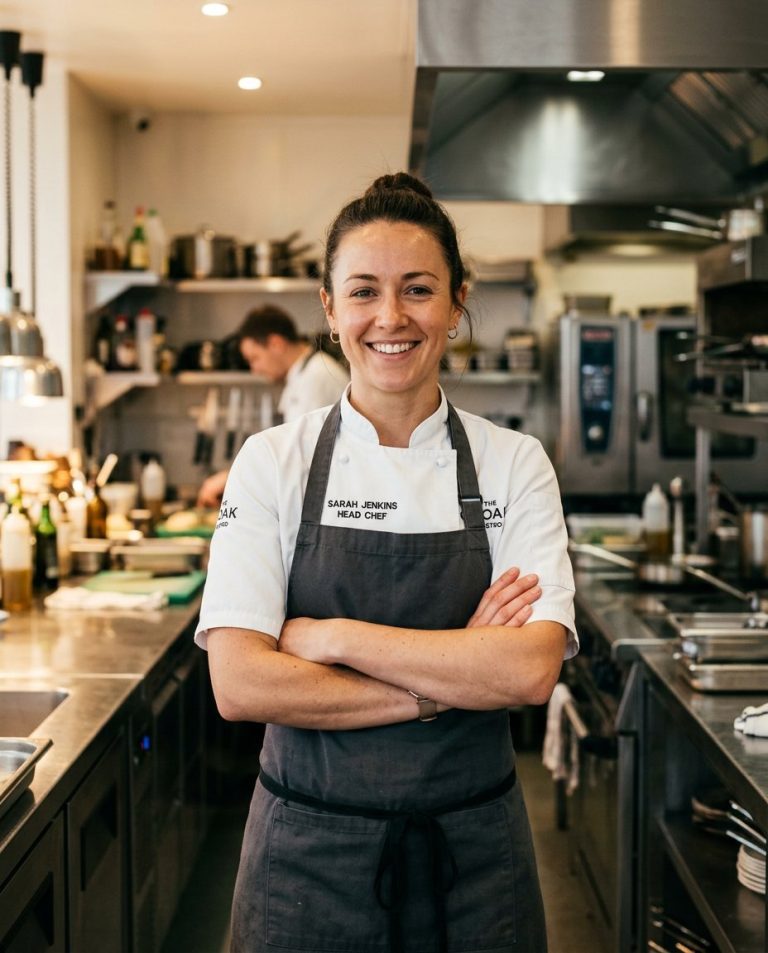
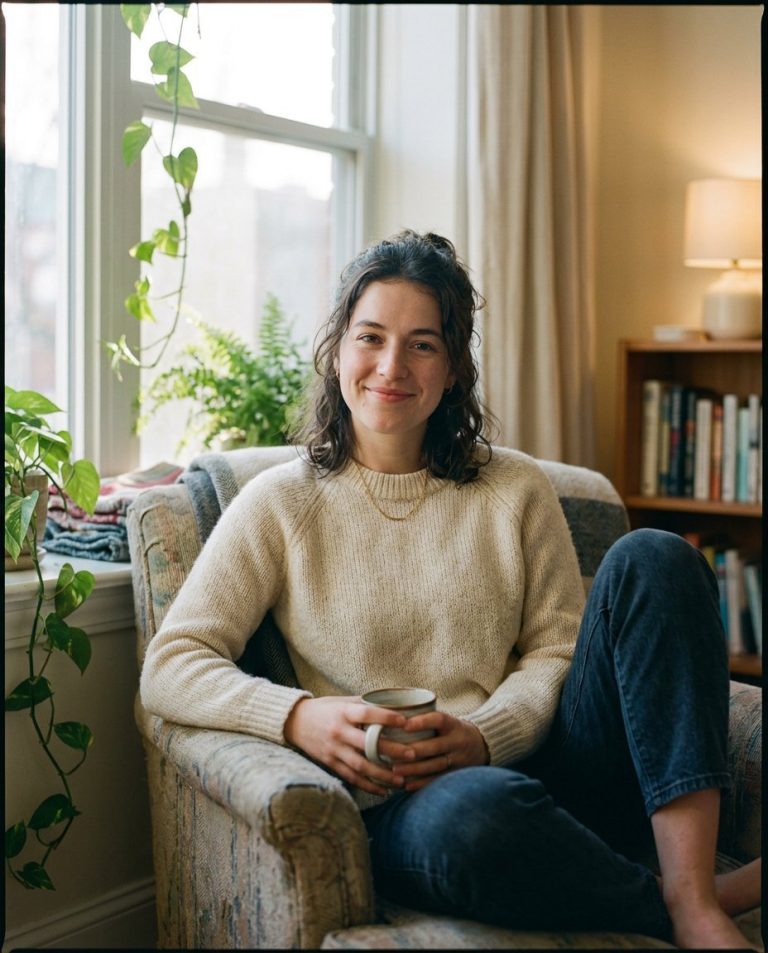
Use a clear photo with the face and upper body visible in even light. A calm, refined expression suits the mood. Avoid busy outfits and dark shadows.
Customize the Result
- Change the tuxedo: black, navy or charcoal
- Change the pose: bow tie, cufflinks or jacket
- Change the setting: mirror, window or suite
- Change the format: 9:16 for Stories or 1:1 for the grid
AI Photo Editing Prompt
PromptUse the uploaded photo as the exact face and identity reference. Keep the person's facial identity, skin tone, facial proportions and body proportions completely unchanged. Transform the photo into a groom tuxedo getting-ready portrait. Dress them in a black tuxedo, adjusting the bow tie in front of a mirror with cufflinks visible, in an elegant room with soft moody window light. Pose: calm and refined, looking toward the camera. Lighting: soft moody window light with a classic color grade and gentle shadows. Camera: vertical 4:5 Instagram framing, 85mm lens look, shallow depth of field with sharp focus on the face. Keep realistic skin texture, natural fabric detail and a photorealistic finish. The result should look like a real groom getting-ready photograph of the same person.
Negative Prompt
Negative Promptchanged face, different person, distorted body, bad anatomy, cartoonish, watermark, text, oversaturated, dark shadows
Prompt Details
| Prompt Type | Photo Editing |
|---|---|
| AI Tool | ChatGPT |
| Style | Photorealistic |
| Category | Photo Editing |
| Use Case | Instagram, Social Media |
| Tags | bow tie, getting ready, groom, identity preservation, instagram, photo editing, portrait, tuxedo |
| Aspect Ratio | 4:5 |
| Lighting | Soft window |
| Camera | DSLR |
| Lens | 85mm |
| Mood | Refined |
| Difficulty | Beginner |
How to Use This Prompt
- Copy the prompt using the button above.
- Open your preferred AI image-generation or editing tool.
- Upload the photo you want to edit.
- Paste the prompt into the text field.
- Adjust parameters (aspect ratio, quality, steps) if necessary.
- Generate or edit the image, then refine until you like the result.