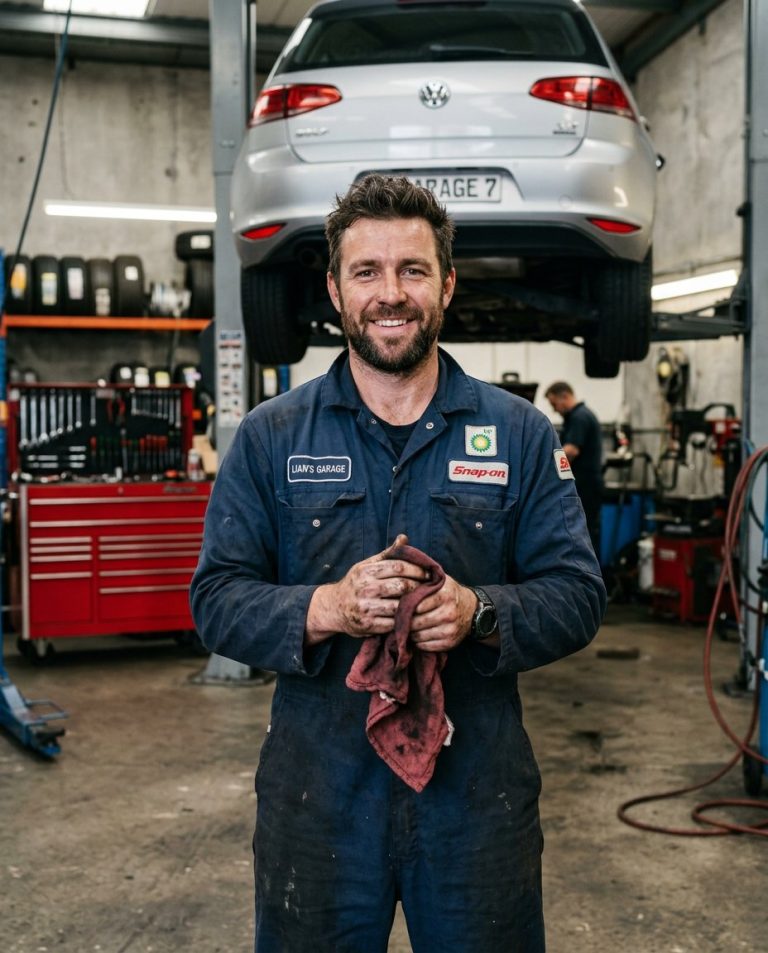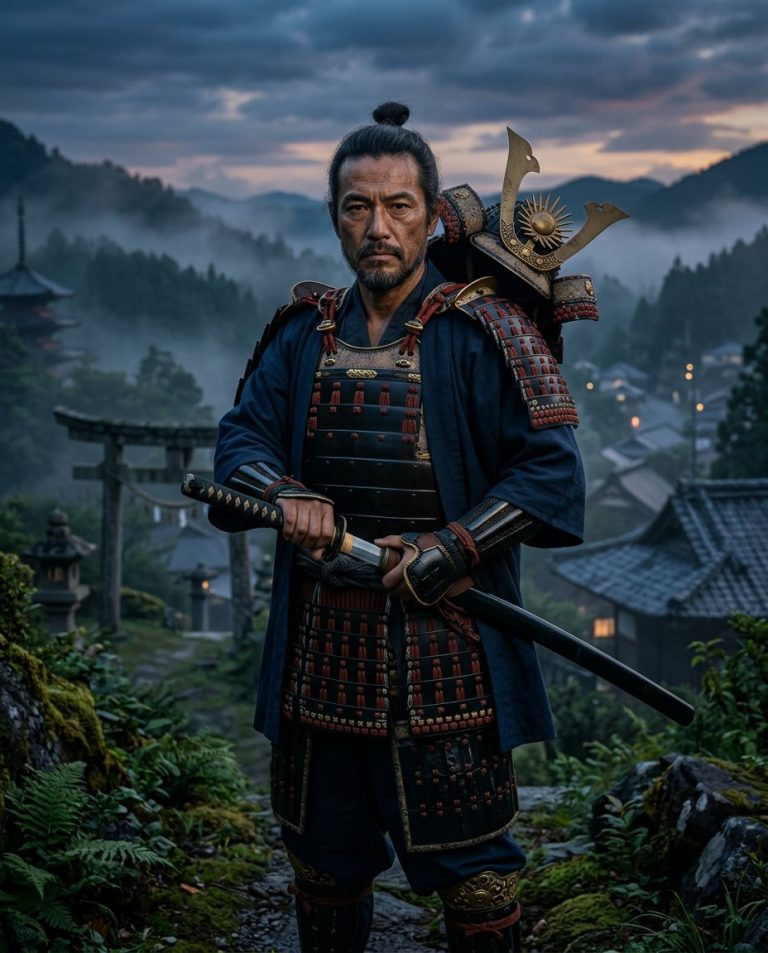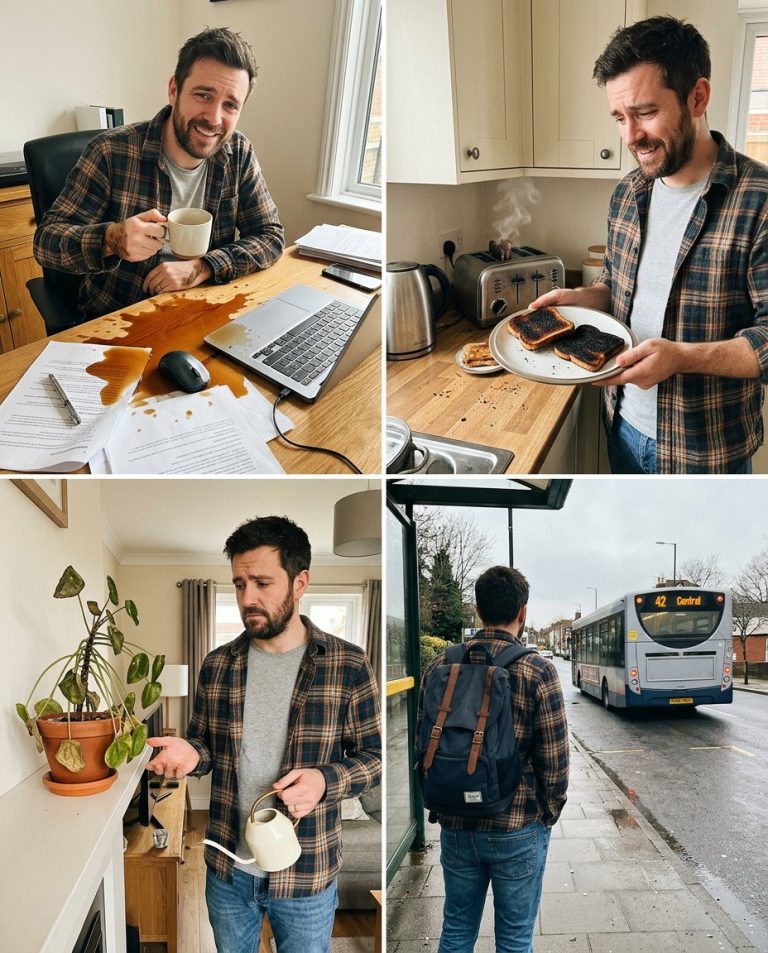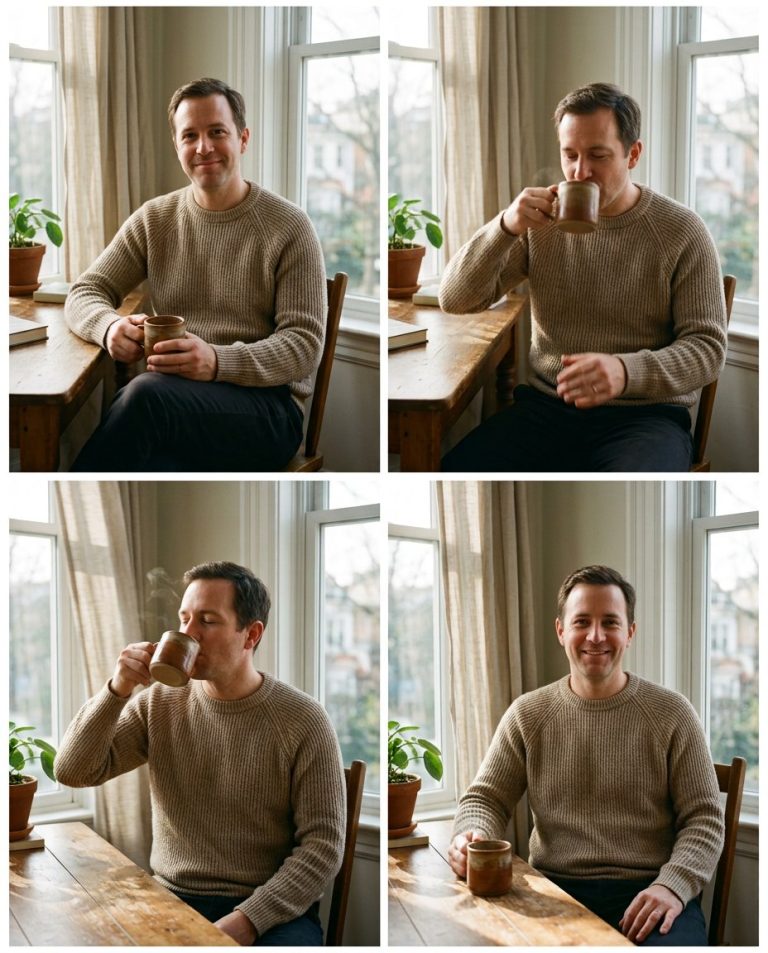
Screen-print halftone aesthetics are a distinct graphic style for social media. This prompt converts one portrait into a two-color halftone screen-print: the image is rendered in visible halftone dots (two ink colors), with paper texture, slight registration offset between colors, and a large blank area for manual copy. It is a graphic treatment, not a political poster. No slogans, flags, or campaign marks.
Rights and accuracy note: Use a rights-cleared, licensed, public-domain or user-owned source photo. A recognizable public-figure photo may be used only as an optional visual example; do not imply endorsement, sponsorship, a new event or a statement the person never made. Add real names and copy outside the image, and label a materially AI-edited result. The featured sample is an original fictional portrait example and does not depict any real person.
What This Prompt Changes
- Reduces portrait to visible halftone dots in two ink colors (navy + coral)
- Adds slight registration offset between color plates for authentic screen-print feel
- Applies uncoated newsprint paper texture with visible fiber
- Reserves large blank copy zone (lower 35%) with clean edge
- No text, numbers, logos, flags, or political symbols rendered
How to Use It
Upload a clear portrait to ChatGPT (GPT Image). Paste Prompt 1 for navy/coral halftone on newsprint (4:5), Prompt 2 for black/gold on coated stock (9:16), or Prompt 3 for CMY process simulation on kraft (4:5). The AI renders visible halftone dots with registration offset and paper texture. The blank copy zone is left clean for manual text. No political content, slogans, or generated text.
Customize the Result
- Ink colors: navy/coral, black/metallic gold, or CMY process simulation
- Halftone LPI: 45 (coarse visible), 65 (smooth), or mixed for process
- Registration: 0.5mm offset (vintage), perfect alignment (modern), or slight drift (process)
- Paper stock: uncoated newsprint, smooth matte coated, or recycled kraft
- Copy zone: lower 35%, upper 20% with deckle, or center horizontal band
Related PromptTai guides:
- Create a Two-Color Street-Print Portrait Background From One Photo AI Prompt
- Create a Four-Frame Cinematic Film-Grade Moodboard From One Portrait AI Prompt
Copy the Main Prompt
Prompt 1
Prompt 2
Prompt 3
Negative Prompt (What to Avoid)
Note: These prompts work best with clear, well-lit source photos. The AI preserves your natural features while transforming the style, lighting, and mood. No text, numbers, or labels are rendered in the generated image — all copy is added manually for accuracy and compliance.
AI Photo Editing Prompt
Negative Prompt
Prompt Details
| Prompt Type | Photo Editing |
|---|---|
| AI Tool | ChatGPT |
| Style | Illustration |
| Category | Photo Editing |
| Use Case | |
| Tags | Blank Copy Space Portrait, Graphic Portrait Edit, Halftone Dot Edit, Halftone Screen-Print Portrait, Paper Grain Portrait, Screen-Print Background, Two-Color Ink Portrait |
| Aspect Ratio | 4:5 |
| Lighting | Window / Practical / Screen-Print / Acrylic / Device |
| Mood | Editorial / Cinematic / Graphic / Physical / Device |
| Difficulty | Intermediate |
How to Use This Prompt
- Copy the prompt using the button above.
- Open your preferred AI image-generation or editing tool.
- Upload the photo you want to edit.
- Paste the prompt into the text field.
- Adjust parameters (aspect ratio, quality, steps) if necessary.
- Generate or edit the image, then refine until you like the result.